Teams
The manage the Teams information for the Master Event, click on the Teams button

The system will show all of the current Teams information
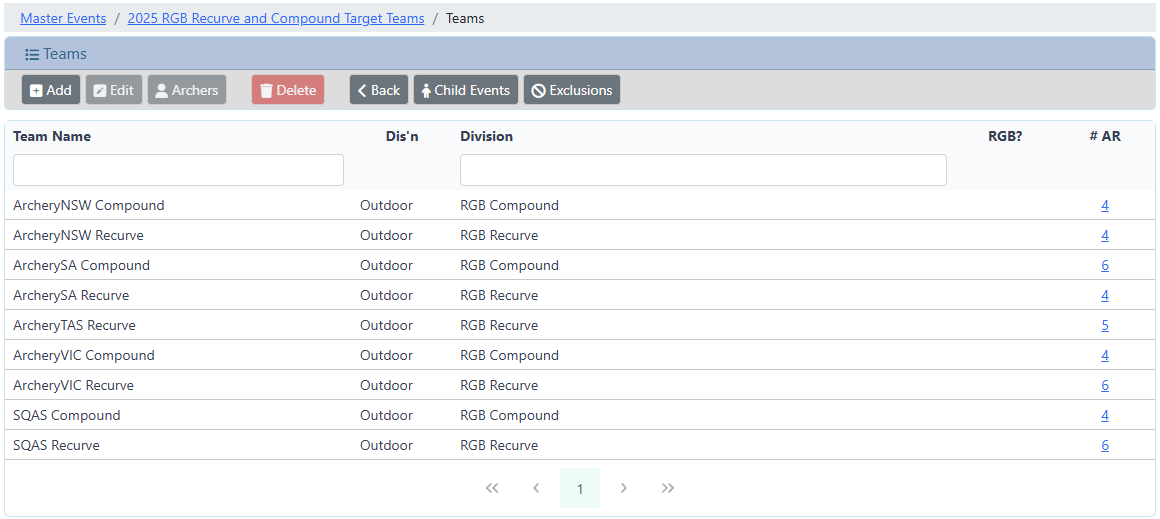
Add a Team
To add a new Team, click on the Add button

Edit a Team
To edit an existing Team, select a Team from the list, and click on the Edit button
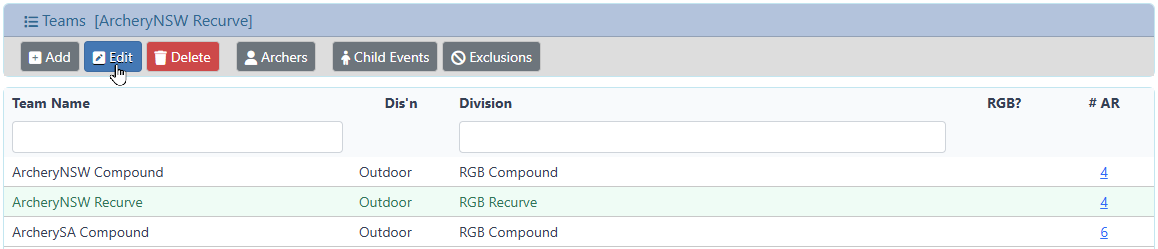
Add or Edit, a dialog will be presented to allow management of the Team configuration.
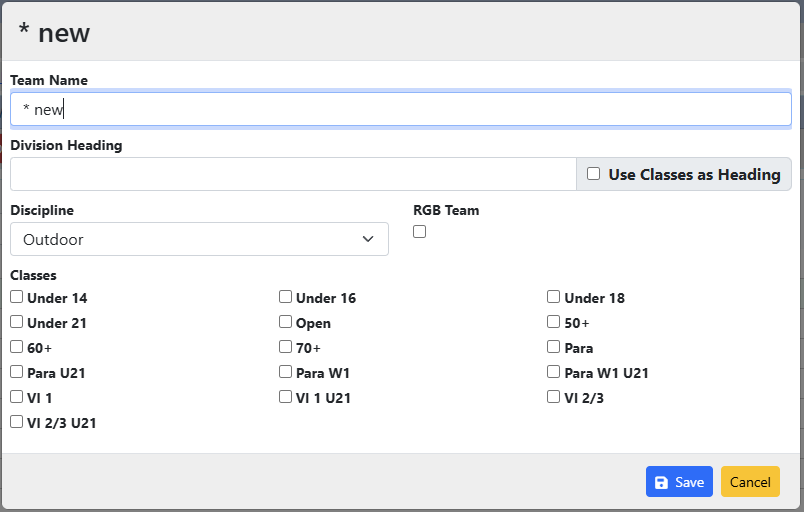
Team Name: Provide the name of the Team
Division Heading: The Division title to display in the Event results page
- Use Classes as
Heading: When checked, the title will be auto-generated from the list of selected Classes
Discipline: The associated Discipline
RGB Team: Is this team associated with an RGB
Classes: The list of classes allowed to be in this Team
Note: the Discipline and Classes selections are used to filter the list of Archers when adding Team members.
Delete a Team
To delete a Team from the Master Event, select the Team and click on the Delete button
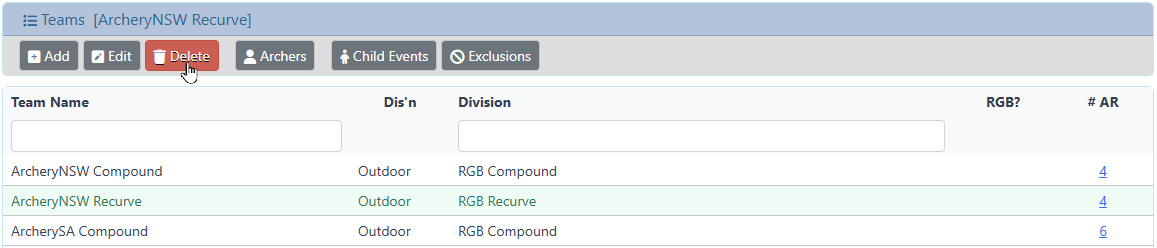
A dialog will be presented to confirm the delete
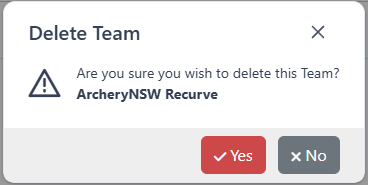
Click yes to continue and delete the Team from the Master Event.
The Archers scores are not touched .. this only removes the Team from the Master Event.
Click no to cancel the operation, the Team will not be deleted.
View / Manage Archers in a Team
To View the Archers in a Team or manage the Archers associated with a Team, select the Team and click on the Archers button
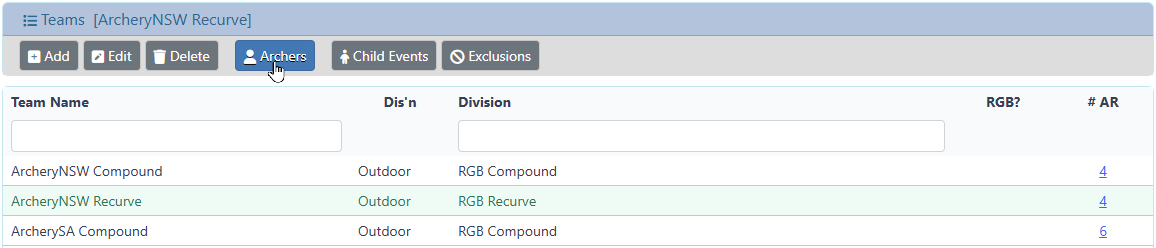
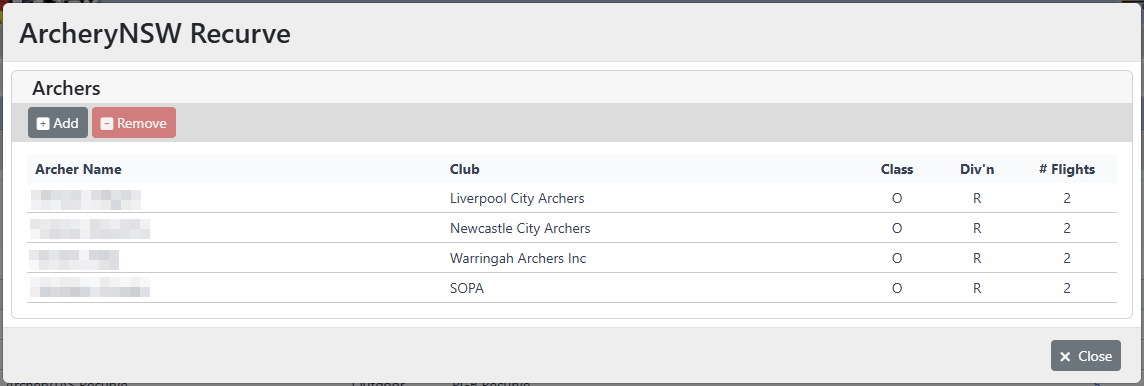
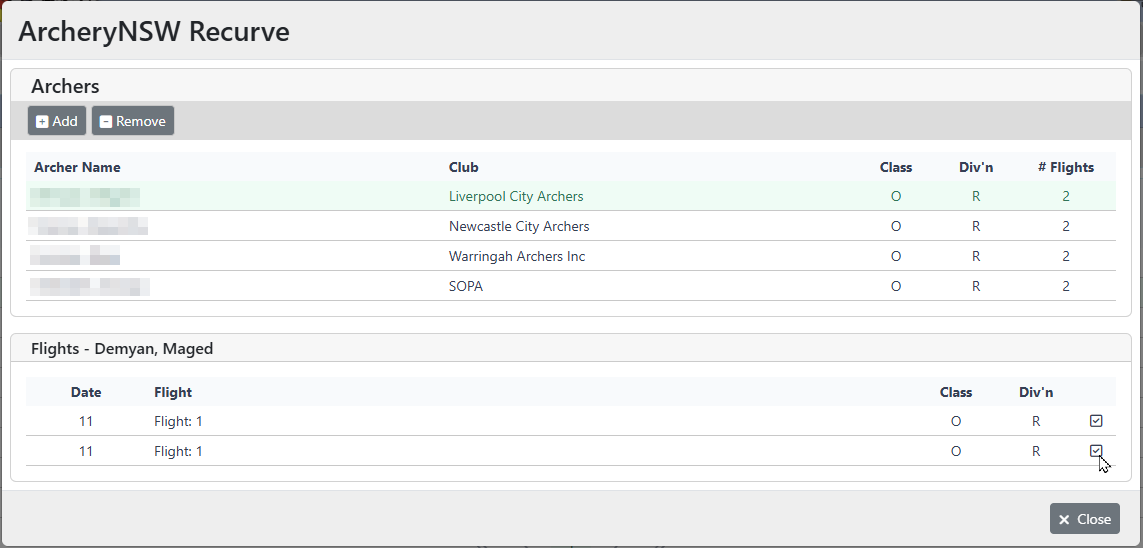
A dialog will be presented with the current list of Archers, and allows management of the Archers
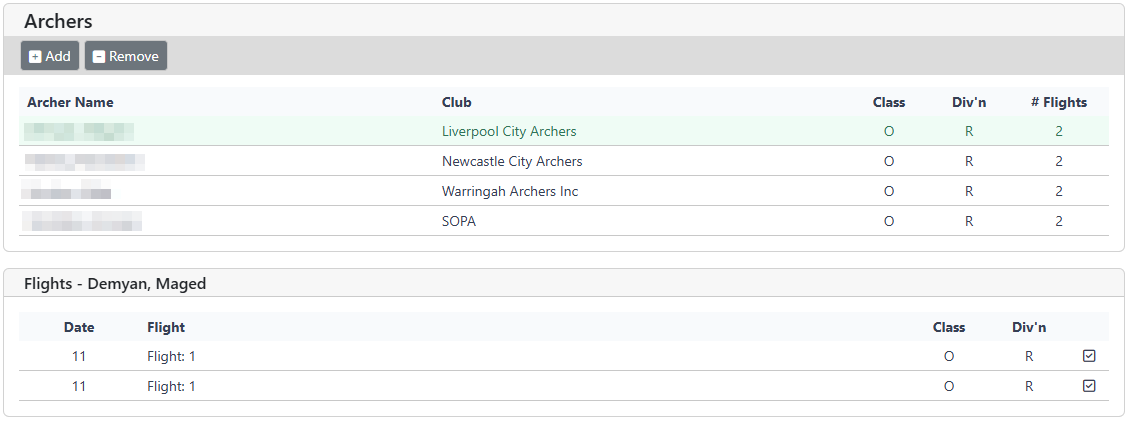
View Archer Flights
Select an Archer from the list, and their registered Flights will be presented in a table below the list
Add an Archer to the Team
To add an Archer as a Team member, click on the Add button

A dialog will be presented to display a list of all Archers from all Events associated with the Master Event.
The list will be filtered to the list of Archers matching the Classes and Discipline from the Team configuration.
Notes:
- Once the first Archer is added, the list will automatically be filtered by the matching Division .. but this filter can be overridden.
- The Add button will be disabled if the maximum number of Archers in a Team have already been added.
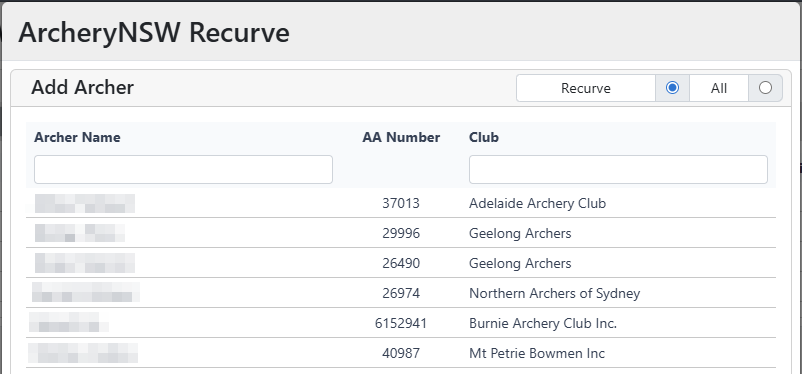
Select the Archer to add to the Team and click on the Select button at the bottom of the dialog.
The Archers list of matching Flights will be presented.
Select each flight to be included in the Team score
Remove an Archer from the Team
To remove an Archer from the Team, select the Archer from the list and click the Remove button

Child Events
Display the Child Events information for the current Master Event
Exclusions
Display the Exclusions information for the current Master Event